Linux administration has a funny rhythm: you’re calm… until a single error message shows up and suddenly you’re speed-scrolling search results like it’s a sport.
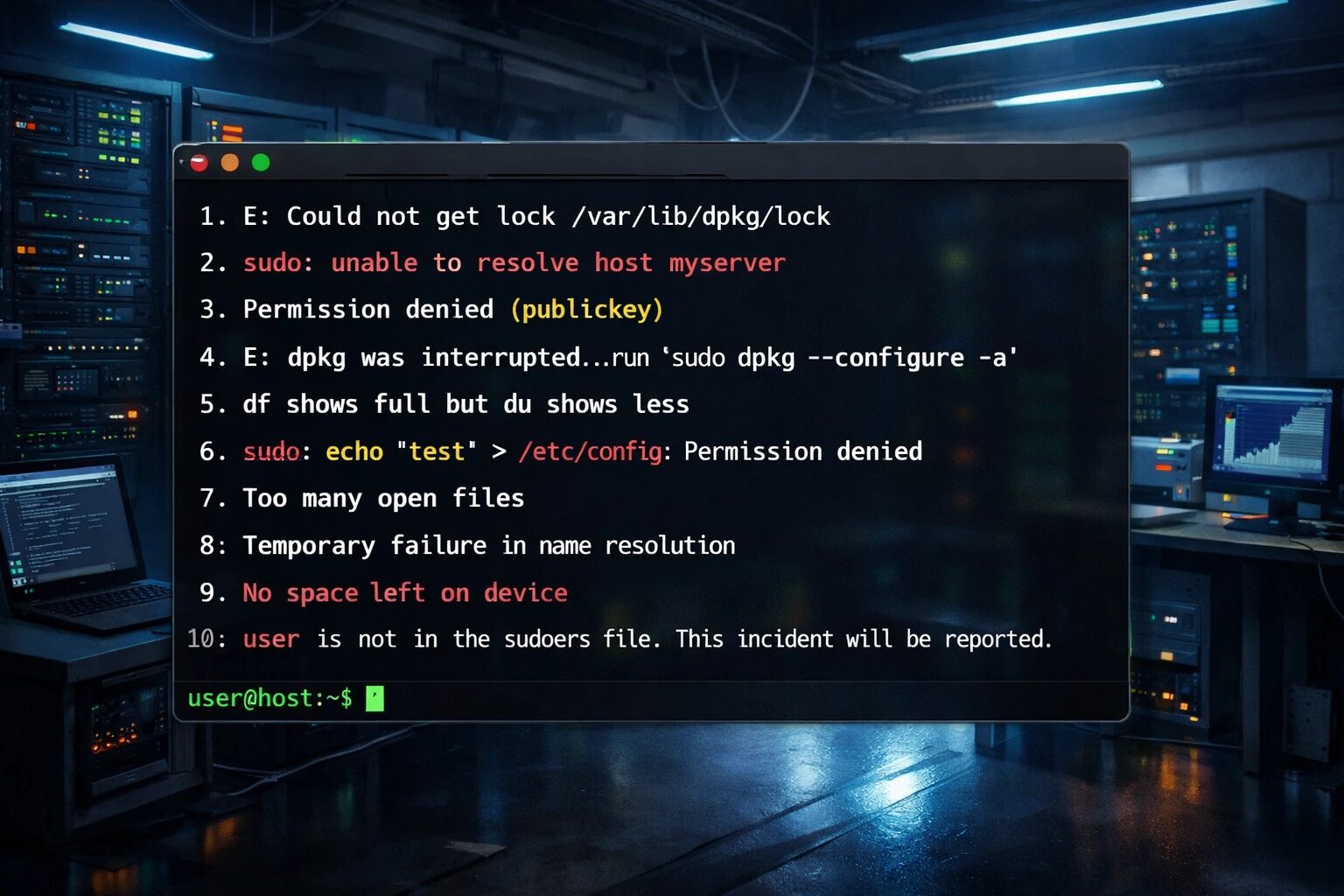
This article is a practical guide to the 10 most “googled” Linux admin issue queries—the exact error strings that become evergreen search landing pages—plus safe, copy/paste fixes for each.
Assumptions: Most commands below target Debian/Ubuntu. Where relevant, I include RHEL-family notes.
Table of contents
- Could not get lock
/var/lib/dpkg/lock sudo: unable to resolve host <hostname>- SSH:
Permission denied (publickey) dpkg was interrupted… dpkg --configure -adffull butdushows lesssudo echo "…" > /etc/...permission deniedToo many open files/ulimitTemporary failure in name resolutionNo space left on devicebut space exists<user> is not in the sudoers file
1) E: Could not get lock /var/lib/dpkg/lock (or lock-frontend)
What’s happening
Another package manager process is running (or crashed and left the system mid-transaction).
Quick fix (safe)
# 1) See what's holding the lock
ps aux | egrep 'apt|apt-get|dpkg' | grep -v egrep

# 2) If nothing meaningful is running, repair the package state
sudo dpkg --configure -a
sudo apt -f install
sudo apt update
If a process is stuck
Try to stop it cleanly before doing anything else:
sudo kill <PID>
sleep 5
sudo kill -9 <PID>   # last resort only
RHEL note: Similar symptoms show up as dnf/yum locks. Use ps aux | egrep 'dnf|yum|rpm' and resolve the active process first.
2) sudo: unable to resolve host <hostname>
What’s happening
Your hostname doesn’t resolve locally—almost always a mismatch between /etc/hostname and /etc/hosts.
Copy/paste fix
# show current values
cat /etc/hostname
hostname
grep -nE '^(127\.0\.0\.1|127\.0\.1\.1)\s' /etc/hosts
Edit the files:
/etc/hostname
myhostname
/etc/hosts
127.0.0.1   localhost
127.0.1.1   myhostname
Then apply:
sudo hostnamectl set-hostname myhostname
3) SSH: Permission denied (publickey)
What’s happening
The server rejected the key you offered. This is usually one of:
- wrong username or wrong key
authorized_keysmissing- permissions/ownership too open (sshd refuses unsafe
.sshfiles) - server policy disables your method
- crypto/algorithm mismatch (older servers, strict policies)
Diagnose fast
Client (shows which key is offered and why it fails):
ssh -vvv user@host
Server logs (choose what exists on your distro):
sudo journalctl -u ssh -n 200 --no-pager || sudo tail -n 200 /var/log/auth.log
Fix #1: permissions/ownership (the repeat offender)
On the server:
sudo chown -R user:user /home/user/.ssh
sudo chmod 700 /home/user
sudo chmod 700 /home/user/.ssh
sudo chmod 600 /home/user/.ssh/authorized_keys
Fix #2: wrong key / missing key
If password login works:
ssh-copy-id -i ~/.ssh/id_ed25519.pub user@host
Fix #3: modern key type (helps with policy mismatch)
ssh-keygen -t ed25519 -a 64
4) E: dpkg was interrupted, you must manually run 'sudo dpkg --configure -a'
What’s happening
A package install/upgrade was interrupted and dpkg needs to finish configuring packages.
Copy/paste fix
sudo dpkg --configure -a
sudo apt -f install
sudo apt update
sudo apt upgrade
If it “hangs”
It’s usually waiting for a prompt (config file prompt, services restart, etc.). Run it in an interactive terminal and answer prompts.
5) df shows full but du shows less
What’s happening
You’re missing disk usage that du can’t “see” as files, most commonly:
- deleted-but-still-open files
- mount points/overlays confusing what you’re counting
- filesystem reserved blocks/overhead
Fix path A: find deleted-but-open files
sudo lsof +L1
If you see huge deleted files, restart the offending service/process (or fix log rotation).
Fix path B: ensure you’re measuring the same filesystem
df -hT
mount | column -t
sudo du -xhd1 /
Fix path C: ext filesystem reserved space
(Verify before changing anything.)
sudo tune2fs -l /dev/<device> | egrep 'Reserved block|Reserved block percentage|Block count'
6) sudo echo "…" > /etc/... permission denied
What’s happening
Shell redirection (>) happens before sudo, so the write is attempted as your non-root user.
Correct patterns
Best default: tee
echo 'myline' | sudo tee /etc/somefile >/dev/null
Or: root shell for the whole command
sudo bash -c "echo 'myline' > /etc/somefile"
7) Too many open files / ulimit issues
What’s happening
The process hit its file descriptor limit (common for web servers, proxies, databases, and high-connection workloads).
See the current limit
ulimit -n
cat /proc/$(pidof <service> | awk '{print $1}')/limits | sed -n '1,60p'
Fix for systemd services (recommended)
sudo systemctl edit <service>
Add:
[Service]
LimitNOFILE=65535
Apply:
sudo systemctl daemon-reload
sudo systemctl restart <service>
Tip: Also check the app config (e.g., Nginx worker_connections) so it matches reality—raising one knob while the other stays low is how you get the same error again.
8) Temporary failure in name resolution
What’s happening
DNS resolution is broken (not necessarily networking).
Diagnose: IP vs name
ping -c2 1.1.1.1
ping -c2 google.com
cat /etc/resolv.conf
Common fixes
Restart the resolver:
sudo systemctl restart systemd-resolved 2>/dev/null || true
If you’re on a server with static config, verify your network stack (netplan/NetworkManager) is actually applying DNS servers and not being overwritten by cloud-init, VPN clients, or stale symlinks.
9) No space left on device even though space exists
What’s happening
Often: you ran out of inodes, not bytes.
Confirm inodes
df -h
df -i
Find inode-heavy directories
sudo du -x --inodes -d1 / 2>/dev/null | sort -n | tail -20
Other culprits:
- tmpfs full (
/run,/tmp) - runaway app creating millions of tiny files
- container overlay layers/log growth
- quotas
10) <user> is not in the sudoers file. This incident will be reported.
What’s happening
Your user doesn’t have sudo rights (or sudoers config is broken).
Confirm group membership
id -nG
Fix (Debian/Ubuntu)
From root (console/recovery/another admin):
su -
usermod -aG sudo <username>
Then log out/in (or reboot).
If sudoers is corrupted
Use:
visudo
If sudo is completely unusable, fix from recovery/rescue mode.
Bonus: “First response” triage bundle (paste this first)
echo "== pkg state =="
ps aux | egrep 'apt|apt-get|dpkg|dnf|yum|rpm' | grep -v egrep || true

echo "== net vs dns =="
ping -c1 1.1.1.1 || true
ping -c1 google.com || true
cat /etc/resolv.conf || true

echo "== disk bytes + inodes =="
df -h
df -i

echo "== deleted-but-open files (top) =="
sudo lsof +L1 2>/dev/null | head -50 || true